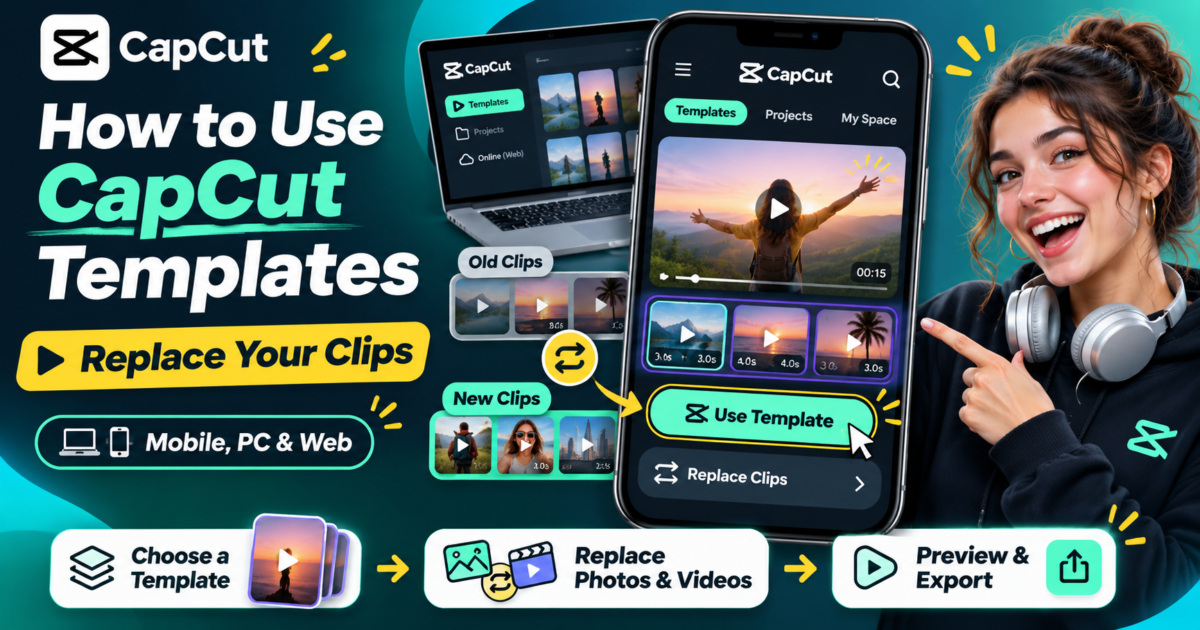
Want to make a CapCut video using a ready-made template instead of editing every transition yourself? Open a template in CapCut, tap Use template, select your own photos or videos for its replaceable slots, preview the result, and export when you are happy with it. On Android and iPhone, you can often find templates in the app’s Template tab or open one through a shared template link.
The tricky part is not choosing a template. It is choosing the right photos or clips so the final video still looks natural. This guide explains the complete process, including how to replace media, adjust the result, and use the more limited template options on a computer.
Note: CapCut’s menus, catalog, and available editing controls can change by device, app version, region, account, and template creator. A missing option does not always mean your app is broken.
What Is a CapCut Template?
A CapCut template is a prepared video design with an existing rhythm, transitions, music, effects, and sometimes text. Instead of building the edit from an empty timeline, you add your own material to the slots the creator has made replaceable.
Imagine a short travel recap: the template opens with a wide landscape, moves through three quick moments, and finishes on a favorite photo. You can keep that structure and use your own mountain view, street clip, café photo, and sunset. The template takes care of much of the timing, but the story is still yours.
That doesn’t mean every part is editable. A template may let you replace five image slots while keeping its music, effects, or background footage fixed. Some creators protect certain elements. Always check the actual editing options before planning a complicated video around one template.
Before You Begin: Pick Media That Fits
Spend a minute organizing your photos and clips before opening the template editor. It makes the replacement process much easier.
- Check the number of slots. A design asking for six clips needs six suitable pieces of media, unless the editor allows you to reuse one.
- Look at the shape. A vertical template for Reels or TikTok works best with media that can be cropped vertically without cutting off the subject.
- Choose clips with a clear subject. Fast templates leave little time for viewers to find out what they are looking at.
- Keep originals. Do not delete or overwrite the source photos and videos while experimenting.
- Listen to the soundtrack. If a beat-based design depends heavily on music, very long, slow clips may feel awkward in short slots.
Small example: For a five-slot birthday recap, you might prepare one opening portrait, two short activity clips, a group photo, and one closing image. Put them in an album first so you can select them in the intended order.
How to Use CapCut Templates on Android and iPhone
The following steps describe CapCut’s documented mobile template workflow. Your screen may show slightly different labels.
Step 1: Open the Template Library
Launch CapCut on your phone and look for Template or Templates along the main screen’s navigation. If you see it, open the library and browse by topic or use its search option.
Not every device or region shows the same template feed. If you cannot find the tab, skip ahead to the section on missing templates rather than spending time searching through unrelated timeline tools.
Step 2: Preview a Template Before Selecting It
Tap a design to play its preview. Watch the entire example once, not just the first second. Look for how many times the screen changes, whether the style depends on a particular subject, and whether the text or music suits the video you want to make.
A template with rapid flashes may be fine for sports highlights but awkward for a calm photo diary. Choosing the right rhythm is often more important than choosing the most popular effect.
Step 3: Tap “Use Template”
When you find a suitable design, tap Use template or Use template in CapCut. CapCut will guide you toward the media selection screen, where the template’s replaceable placeholders can be filled with your own material.
If the editor asks for five items, select the five photos or videos in the order that makes sense for your story. Some templates specify whether a particular placeholder accepts an image or a video; follow what the selector permits.
Step 4: Select Your Own Photos and Videos
Open your device’s media picker and choose the material you prepared. Keep an eye on the slot order. The first selected item may become the opening shot, while the last becomes the ending, depending on the template.
You do not have to choose your most impressive image first every time. Sometimes a simple opening shot followed by a better reveal creates a clearer sequence. Check the preview before settling on the order.
Step 5: Preview the Video
Tap Preview if shown. Watch how your media fits the existing timing. Pay attention to three things: whether people or objects are cropped awkwardly, whether a video starts after the interesting action has already happened, and whether the text covers anything important.
Do not judge a template only by its sample video. Your replacement footage can look completely different once the automatic crop and timing are applied.
Step 6: Edit Individual Slots Where Allowed
Tap a segment in the template editing screen and look for controls such as Edit, Replace, Crop, or a similar icon. CapCut’s Help Center documents selecting a segment and using Edit to replace or adjust its content.
If one photo looks too close, adjust its crop if the template supports it. If a clip begins too early, try selecting a more useful part of the clip. If a placeholder will not let you change its content, it may be locked by the creator rather than a mistake on your part.
Step 7: Export and Check the Saved File
Play the finished preview one last time. Then tap Export and choose the available saving or sharing option. Check the exported file in your gallery or video player before posting it elsewhere.
Export choices and the availability of certain effects or branding options can vary. If you are unsure which resolution or frame rate is appropriate, read our CapCut export settings guide.
How to Open a CapCut Template Shared on TikTok
Sometimes you will find a template because you like the edit in someone else’s video rather than by searching CapCut’s own library.
- Open the video that includes a CapCut template link or template label.
- Tap the link offered with that video.
- Choose Use template in CapCut if the option is available.
- Allow the official CapCut app to open the template.
- Choose your own photos or clips, preview, and export.
The shared link must still be active and the template must be available for your account and region. If a link fails or a particular feature does not show up, try another template or check the official Help Center rather than installing modified versions of the app.
How to Replace Clips in a CapCut Template
Replacing media is the step that most beginners expect to happen automatically. It is usually simple, but there are a few useful distinctions.
Replacing a Photo
If the template asks for a photo, choose one that has enough room around the main subject to survive cropping. A close-up face near the edge may be cut off by a vertical frame or zoom effect. Preview the result and adjust the visible area if the slot allows it.
Replacing a Video
For a video slot, the template may use only a short portion of the clip. Start with a clip that already contains the action you want viewers to see. If your interesting moment begins several seconds in, use any available trimming or segment selection control to move that moment into the slot.
If you need to prepare clips before applying a template, our beginner guide to trimming, splitting, and arranging clips explains the timeline basics.
What If There Is No Replace Button?
Not every item in a template is a placeholder. Some parts are built into the design, while others may have been deliberately protected by the creator. Try selecting a different clip segment. If only certain slots are editable, work within those boundaries or choose another template that offers more control.
How to Use CapCut Templates on PC or Mac
CapCut’s desktop editor can offer built-in or curated templates, but the selection is not necessarily the same as the mobile community library. In particular, a template trending in a phone app may not be available on Windows or macOS.
- Open the official CapCut desktop app.
- Look for a Templates or Library section, if your version provides one.
- Preview an available built-in design and select Use Template, Add, or the equivalent action.
- Replace the offered placeholder media with your own clips or images, if supported.
- Adjust any editable text, music, or stickers and review the timeline.
- Export the finished video.
Some official CapCut Help pages describe desktop browsing and template selection differently. That is a good reason not to promise an identical search bar or full template library on every PC. If a mobile template is absent on desktop, use the mobile app for that particular template rather than assuming the desktop installation is faulty.
Can You Use CapCut Templates in a Web Browser?
Yes, some templates are available through the official CapCut web editor. The web collection can be smaller than the mobile catalog, especially for community and trending templates.
Open the web editor, sign in if required, and look for a Templates section. Choose an available design and select the option to use or edit it. Replace any designated placeholder photos or videos and export the result.
Web and desktop are useful alternatives for certain projects, but neither should be treated as a guaranteed way to open every template from a phone.
Make the Template Feel Like Your Video, Not Someone Else’s
Templates are designed to repeat a visual style. That is helpful, but it can also make unrelated videos look nearly identical. A few thoughtful decisions can improve the result without rebuilding the edit.
- Tell a small story. Choose an opening, a middle, and an ending rather than filling slots with random favorites.
- Use consistent footage. Mixing very dark and very bright clips can make fast transitions feel abrupt. If you can, choose media with broadly similar lighting.
- Review on-screen text. Update editable words so they actually fit your video. Avoid leaving the template’s sample caption in the final export.
- Check the soundtrack. Make sure the music suits the purpose of the video and that you have the necessary rights to use it on the destination platform.
- Add captions when useful. If someone is speaking, readable captions can make the message easier to follow. See our guide to adding auto captions in CapCut.
Example: A three-photo “before and after” template works best when the images actually show a clear change. A random landscape, a pet photo, and a meal might fit the slots technically, but the finished video will not tell the story the design promises.
Common CapCut Template Problems
The Template Tab Is Missing
CapCut says template visibility can depend on region, device, version, and account. Check for an update through the official app store and confirm you are looking on the home screen rather than inside the regular editing timeline. A missing tab does not always have a user-controlled fix.
A Shared Template Link Won’t Open
The template may be unavailable in your area, removed, or incompatible with your app version. Check whether the link points to CapCut, update the official app if needed, and try an available alternative.
The Template Won’t Let Me Replace Everything
The creator may have limited which materials are editable. Replace the allowed slots and preview the result. If the fixed parts do not work for your project, choose a more flexible template.
My Photo Is Cropped Too Much
Try a photo with more space around the subject, or use the crop or position controls if that placeholder offers them. A vertical template often crops wide landscape photos heavily.
The Final Video Looks Different from the Preview
Check that you exported the newest version. Review the file outside CapCut and compare its text, sound, and timing with the preview. If necessary, make a short test with simpler media or a different supported template.
For more detail about missing templates, see CapCut’s official troubleshooting explanation.
Frequently Asked Questions
Are CapCut templates free?
Some templates are available without an additional purchase, but particular effects, assets, or export features may have different access requirements. Check the price or plan notice shown in your version before choosing a design.
Can I replace a template video with a photo?
Only when the relevant placeholder accepts photos. Some slots require video, and the creator may control what type of media you can substitute.
Can I use CapCut templates without TikTok?
Yes, if the Template section or official web/desktop templates are available to you. TikTok is one way to discover a shared template link, not a required editing step for every CapCut template.
Can I change the music in a CapCut template?
Sometimes. It depends on the specific template and which elements its creator allows you to edit. Check for an audio control in the template editor. Also confirm the music is appropriate for where you plan to publish the video.
Why can’t I find the same template on PC?
CapCut’s desktop catalog is more limited than the mobile catalog. Some shared or community templates are not available on desktop, even when the software is updated.
A Simple Checklist Before Exporting
- Every replaceable slot contains the intended photo or video.
- The subject is not awkwardly cropped.
- The clip order tells a clear story.
- Any editable text has been checked.
- Music and sound are appropriate for the video.
- The entire preview has been watched before export.
Bottom line: The easiest way to use CapCut templates is to choose a design that already matches your story, place suitable media in its replaceable slots, and check the preview carefully. A few deliberate choices can make a ready-made format feel much more personal.
Official Sources and Editorial Notes
- CapCut Help: How to Use Templates — template selection across platforms.
- CapCut Help: How to Use and Export Templates — mobile preview, replacement, export, and platform limitations.
- CapCut Help: Replaceable Material Clips — explains which elements a template creator can make editable.
- CapCut Help: Missing Templates — device, region, and account differences.
Editorial note — November 5, 2026: This independent informational article is based on official CapCut documentation and illustrative editing examples, not a claim of firsthand testing of every app version. CapCut features and menu labels may vary by device, region, version, and account.
[…] open a template but do not know how to replace its photos or clips, that is a different task. Our CapCut templates and clip replacement tutorial covers the editing workflow step by […]