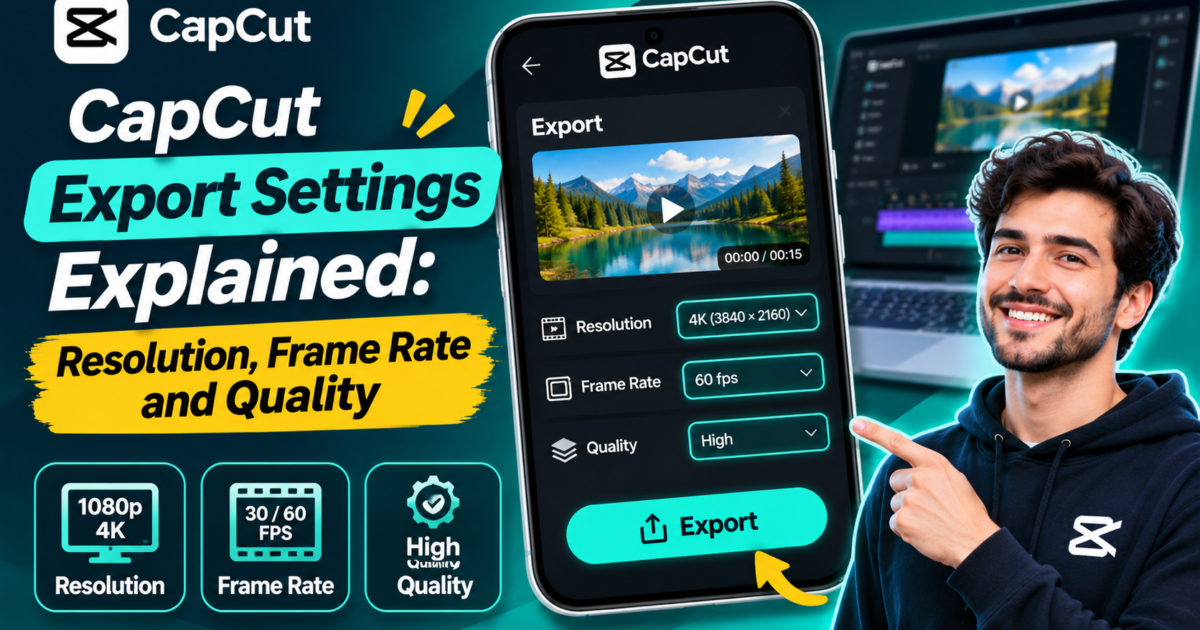
Export settings affect file size, compatibility, and how your finished video looks. There is no single best export setting for every project. This guide explains the choices in plain English so you can match your output to your source clips and viewing platform.
What is video resolution?
Resolution measures the number of pixels in each frame. Common choices include 720p, 1080p and 4K. A 1080p export is often a useful starting point for ordinary online video, while 4K may make sense if your original footage contains that level of detail and the destination supports it. Exporting a low-resolution source at 4K does not create missing detail.
What does FPS mean?
Frames per second (FPS) describes how many separate pictures appear in a second of video. Footage recorded at 30 FPS often looks natural for tutorials and everyday scenes. A 60 FPS source can make quick motion look smoother, but choosing 60 FPS for a 30 FPS clip does not turn the original into true 60 FPS footage.
Choose settings in CapCut
- Open your project and finish all editing.
- Review your timeline for missing clips and captions.
- Open the export controls; their location and available settings vary by device and app version.
- Choose an output resolution that matches your original footage and intended destination.
- Choose a frame rate consistent with your source footage or project requirements.
- Export, then play the saved file before posting it anywhere.
Why might an exported video look different?
Several things can affect results: lower-quality original clips, heavy cropping, effects, export compression, or additional compression after uploading to a social platform. Compare the saved local file with the uploaded version before assuming the editor caused the loss of quality.
How to reduce an overly large file
Remove unnecessary footage, consider whether a lower resolution meets your audience’s needs, and avoid exporting at a higher frame rate than necessary. Try a short test export before exporting a long project.
Checklist before sharing
- The aspect ratio fits the intended screen.
- Text is readable and not placed too close to screen edges.
- Speech and background audio sound balanced.
- The entire exported file plays without missing sections.
- Any third-party music, imagery, or footage is used with permission.
For current platform-specific controls and official feature details, consult CapCut. Options may differ by device, version, and account.
[…] resolution, frame rate, and quality choices, read our CapCut export settings guide. Export settings deserve a check, but changing resolution alone is not a reliable remedy for […]
[…] you need help with video resolution or frame rate, our CapCut export settings guide covers those topics. Video export and separate SRT/TXT subtitle export are not the same operation, […]
[…] help choosing resolution and frame rate, see our CapCut export settings guide. Export menus and premium style choices vary between […]
[…] Export choices and the availability of certain effects or branding options can vary. If you are unsure which resolution or frame rate is appropriate, read our CapCut export settings guide. […]