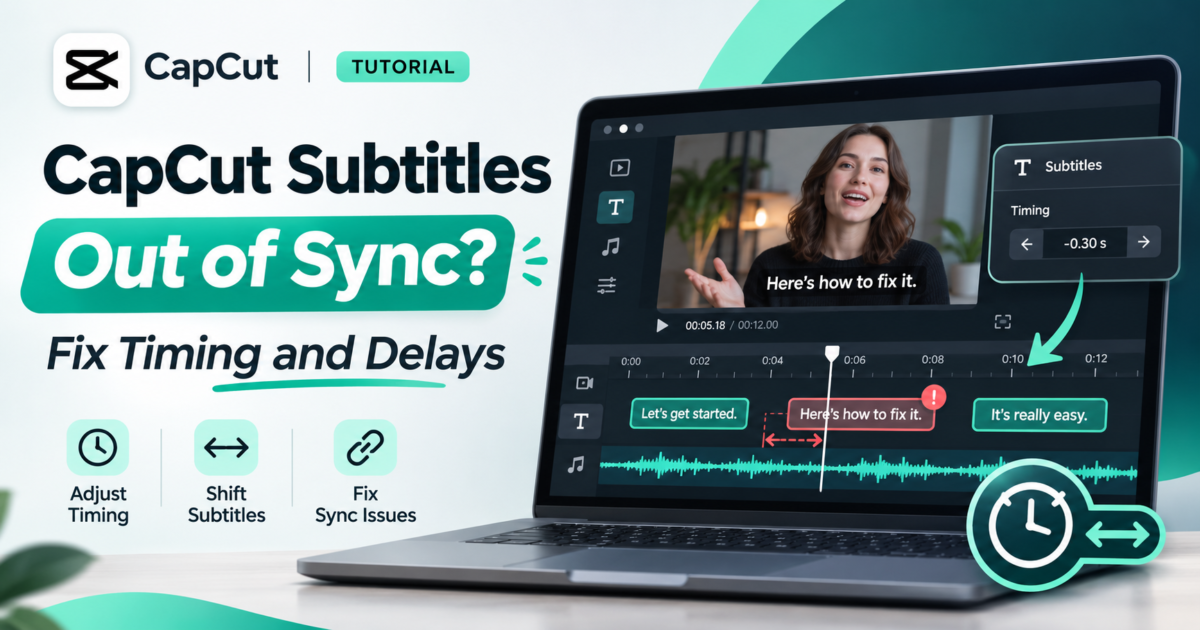
You finish editing a video, press play, and notice the subtitles are arriving a little too late. The speaker finishes a sentence, but the words are still sitting on the screen. Or the captions seem fine at first, then gradually fall behind.
If your CapCut subtitles are out of sync, first check whether the delay stays the same or gets worse as the video plays. A steady delay can often be fixed by moving the affected caption segments earlier or later. If the error grows over time, look for edits, speed changes, or subtitle timing that no longer matches the video. Simply shifting every caption will not necessarily solve that kind of problem.
Below are practical steps for fixing subtitle timing in CapCut on Android, iPhone, Windows, Mac, and the web editor. The labels and controls can differ by app version, so use the closest equivalent shown on your screen.
Why Are My CapCut Subtitles Out of Sync?
Most timing mistakes fall into three patterns. Knowing which one you have can save you from editing the wrong part of your video.
| What you notice | What it usually means | Best first move |
|---|---|---|
| Every line appears about the same amount early or late | A fairly constant timing offset | Shift the affected captions to match the speech |
| The first lines match, but later lines drift away | Captions and video no longer share the same timing throughout | Check cuts, speed changes, and subtitle source |
| Only one or two lines are wrong | Individual caption boundaries need adjustment | Correct those segments rather than the whole track |
There is another possibility: the audio and video themselves are out of sync. Watch the speaker’s mouth or listen for an obvious on-screen event. If the sound already arrives at the wrong time, correct the underlying audio-video problem before spending time on subtitles.
Quick Fix: Move Captions to Match the Spoken Words
Open your project and find a sentence where you can clearly hear when the speaker begins. Play that moment a few times. Then select the matching subtitle clip or caption segment on the timeline.
- If the caption appears too early: move its start later, closer to the first spoken word.
- If the caption appears too late: move its start earlier, so the text appears when the phrase begins.
- If the caption stays too long: shorten its ending so it does not cover the next sentence.
- If the caption vanishes too soon: extend its ending enough for the complete phrase, without overlapping the next segment unnecessarily.
In CapCut versions that show subtitle blocks directly on the timeline, you can typically adjust a block or drag its edges to refine its start and end times. Make small changes and replay the section after each one. The official CapCut caption-editing guide describes editing individual caption segments and their display time.
Important: Moving the subtitle text box up or down in the video preview changes where the text appears on the screen. It does not fix when the text appears. Timing changes belong in the timeline or caption editor.
How to Fix Subtitle Timing in CapCut on Android and iPhone
You do not necessarily need a computer to correct a few lines. The mobile editor supports editing auto-generated subtitle segments, although the exact controls can differ across releases.
1. Open the project and find the caption track
Load the project and scrub the timeline to the line that is late or early. If the subtitles were made with Auto Captions, their segments should be available to select in the editing timeline.
2. Select the affected subtitle
Tap the caption segment, then look for the available text or caption-editing controls. Zoom into the timeline if a short phrase is difficult to select. A closer view makes small adjustments less frustrating.
3. Change when the caption starts and ends
Adjust the segment’s position or duration using the timing controls available in your version. Listen for the first spoken word and line up the subtitle with that moment. Next, check when the sentence ends. Do not leave a finished sentence visible deep into the next one.
4. Review the captions around it
A change to one segment can make an adjacent caption feel crowded or leave an awkward gap. Play a few seconds before and after the corrected line to make sure the transition feels natural.
5. Watch the completed video
Check more than the first sentence. Play a section near the middle and another near the end. If the caption error increases in later sections, use the drift checks below rather than repeatedly moving individual lines without identifying the cause.
If you still need help making the captions in the first place, start with our CapCut auto captions tutorial for mobile and PC.
How to Adjust Caption Timing in CapCut on Windows or Mac
On a desktop, the larger timeline usually makes detailed subtitle adjustments easier to see.
- Open the project and play the portion where speech and text do not line up.
- Select the subtitle segment on the timeline. You may also be able to open the caption editor by double-clicking or using an Edit Captions option.
- Correct the caption’s start or end using the timeline block and its available handles.
- Repeat for other affected phrases. If many lines share the same offset, check whether your version supports selecting and shifting multiple captions together; otherwise, adjust them in manageable groups.
- Replay the beginning, middle, and end before exporting.
For a precise adjustment, zoom into the area around the spoken word. If you cut a sentence in half, consider splitting a long subtitle into two smaller phrases instead of making viewers read one oversized line.
CapCut documents manual edits and caption segmentation for desktop, mobile, and web in its auto-caption correction guide.
How to Sync Subtitles in CapCut Online
The browser editor also allows you to edit caption text and timing. Open your saved project in the official CapCut web editor, locate the caption layer, and select the line that is out of time.
Use the subtitle block or caption-editing panel to adjust its boundaries. Preview the phrase with sound. If the timeline is hard to read, zoom in rather than making a large guess about the delay.
Before closing or reloading the tab, make sure your latest edits have saved. For a long project, test a short exported sample before committing to a full render.
When All the Captions Are Late by the Same Amount
Imagine that every caption appears around half a second after the speaker starts. If the same half-second delay is still present at the end of the video, you are likely dealing with a constant offset.
Pick three spoken phrases—one near the opening, one in the middle, and one near the end. If their delays are nearly identical, you can correct that timing consistently. Shift the captions earlier when they lag behind the voice, or later when they appear before it.
Some subtitle tools support moving a group of captions or applying a timing offset. CapCut’s available group-editing controls vary, so do not assume your version has a one-click fix. If there is no suitable group option, correct the affected segments individually while keeping their spacing consistent.
A practical check: After correcting the middle line, compare the opening and ending again. If those two now look wrong in different ways, the problem probably was not one fixed delay after all.
What If Captions Get More Out of Sync as the Video Plays?
A gradual change is called timing drift. For example, the opening captions may match well, the midpoint may be one second late, and the last captions may be several seconds late. In that situation, moving the entire subtitle sequence by one second merely relocates the problem.
Look for these common workflow issues:
- You changed the length of the video. Removing a scene, trimming the opening, or rearranging clips after generating subtitles may leave caption timing based on the earlier edit.
- You changed playback speed. If a speaking clip is sped up or slowed down, the captions may need new timing for that section.
- You imported subtitles from another version. An SRT file prepared for an earlier cut may not match the finished video.
- The source audio and picture do not match. If the sound itself drifts, caption editing alone cannot resolve the underlying mismatch.
Go back to the first point where the captions begin to drift. Compare the audio, video clips, and caption segments around that edit. If the video structure has changed substantially, it may be quicker to generate new captions from the finished speech track, then correct the wording, rather than repair every outdated time boundary.
For basic editing before captioning, our guide to trimming and arranging clips in CapCut explains how to organize the video timeline.
Imported SRT Subtitles Have the Wrong Timing: What to Check
An SRT subtitle file contains both text and timestamps. Those timestamps refer to a particular version of the video. If the video has changed since the SRT was created, the subtitle file may no longer fit.
For instance, suppose an SRT caption is timed to begin at 00:00:12, but you cut four seconds from the start of the video. That same spoken sentence may now occur at about 00:00:08. The text is right, but the old timestamp is not.
If you imported an SRT file on a supported CapCut platform, check whether the file belongs to the exact video cut you are editing. Review a few timestamps near the beginning, middle, and ending. Use CapCut’s subtitle editing controls to correct the mismatched segments, or update the source subtitle file using an appropriate subtitle editor before reimporting.
CapCut’s official subtitle-import help explains platform differences. In particular, do not assume mobile and desktop provide identical file-import options.
What If Subtitles Look Fine in CapCut but Wrong After Export?
If the timeline preview looks correct but the saved video seems late, do not immediately rewrite every subtitle.
- Play the exported video from a local file, using a different video player if available.
- Check whether the speaker’s audio also sounds delayed compared with the picture.
- Compare a short phrase at the beginning and end of the exported file against the same moments in the editor.
- Make a short test export to see whether the issue repeats.
- Check that you are reviewing the newest exported file, not an older version with outdated captions.
Remember that subtitles burned into the image of a video are different from a separate subtitle track or file. If the captions appear as part of the rendered picture, their timing is baked into that exported version. If you use a separate subtitle file on a platform, playback software may have its own delay controls.
For resolution, frame rate, and quality choices, read our CapCut export settings guide. Export settings deserve a check, but changing resolution alone is not a reliable remedy for incorrect caption timestamps.
How to Prevent Subtitle Delays in Your Next Edit
The easiest timing problem to fix is the one you avoid creating. A simple editing order helps:
- Finish major cuts first. Arrange the footage, remove unnecessary sections, and settle your main voiceover before generating the final captions.
- Choose the correct speech track. Captions should be based on the audio people will actually hear.
- Generate and correct the text. Catch misspelled names and misheard phrases while the sequence is fresh.
- Review timing in three places. Test the start, middle, and end instead of judging the entire project by its first line.
- Export a sample when practical. A short preview file can reveal a problem before you spend time on a long export.
Keep editable project files when possible. If you decide to change the narration or remove an important scene after captioning, expect to review the corresponding subtitle timings again.
Frequently Asked Questions
How do I fix delayed captions in CapCut?
Select the delayed caption segment in the timeline and adjust its start so it appears with the spoken phrase. If many captions share the same delay, check several points in the video before applying similar corrections across the affected sequence.
Why do my subtitles start correctly but become late later?
That pattern suggests timing drift rather than one constant delay. Check whether the video was trimmed, rearranged, sped up, or paired with captions timed for a different edit.
Can I change subtitle timing on CapCut mobile?
Yes. CapCut documents editing caption timing on its mobile editor. Select a generated caption and use the timing or timeline controls offered in your app version.
Can I sync all CapCut subtitles at once?
That depends on the type of timing error and the controls available in your version. A shared offset may be suitable when the delay stays consistent; gradual drift or scattered errors require individual or section-by-section correction.
Do I need to regenerate auto captions after trimming a video?
Not always. Small local edits might require only a few timing adjustments. If many cuts or speed changes have shifted captions throughout the project, regenerating against the final speech track may be more efficient.
Final Check Before You Publish
Play the finished video while listening to the narration. Captions should enter close to the words they describe, stay readable for the phrase, and disappear before unrelated speech takes over. Check several points across the timeline, and test the exported file rather than relying only on the editor preview.
Bottom line: Don’t fix every subtitle problem the same way. Adjust individual lines when only a few are wrong, correct a consistent delay when the offset is steady, and investigate cuts or speed changes when the mismatch grows. That small diagnosis step is often what makes the repair straightforward.
Sources and Editorial Note
- CapCut Help: How Do I Recognise Subtitles? — confirms caption editing across platforms.
- CapCut Help: How Do I Fix Inaccurate Auto-Captions? — discusses adjusting, splitting, and reviewing caption segments.
- CapCut Help: How Do I Import Subtitles? — explains subtitle-file support by platform.
- CapCut: Subtitle Sync and Audio-Video Misalignment — explains constant offsets and timing drift.
Editorial note: This is an independent, original educational guide based on published CapCut help material, not a claim of hands-on testing on every device. Editor menus and capabilities may vary by version, region, and account. Last researched November 4, 2026.
Leave a Reply